

FITS View by Starissimo
See your FITS and XISF (PixInsight) images right in the Mac Finder or Windows File Explorer: a real thumbnail for every file, the full image at a keystroke, and a viewer to sort a whole night of subs in minutes before stacking. Free.
New: PixInsight XISF files, the Windows version, the sorting viewer, stars at 100% and network drives.
Apple Silicon (M1, M2, M3, M4…) and Intel Macs · 64-bit Windows PCs.
What FITS View does
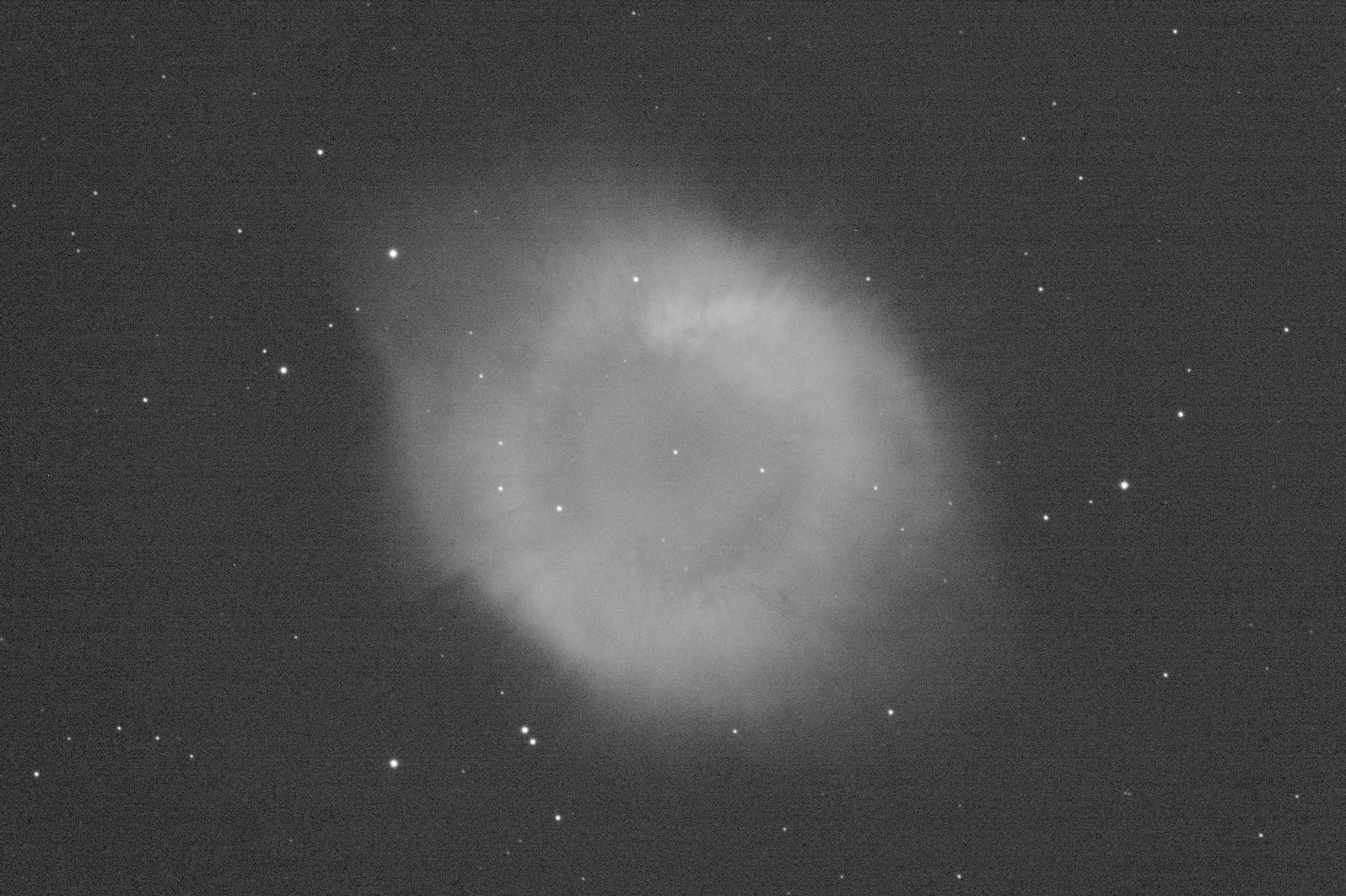
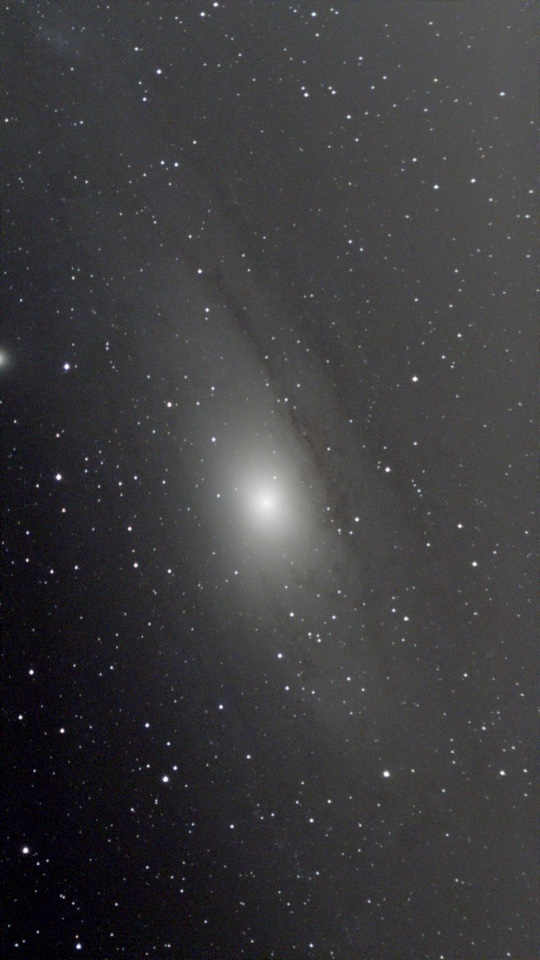
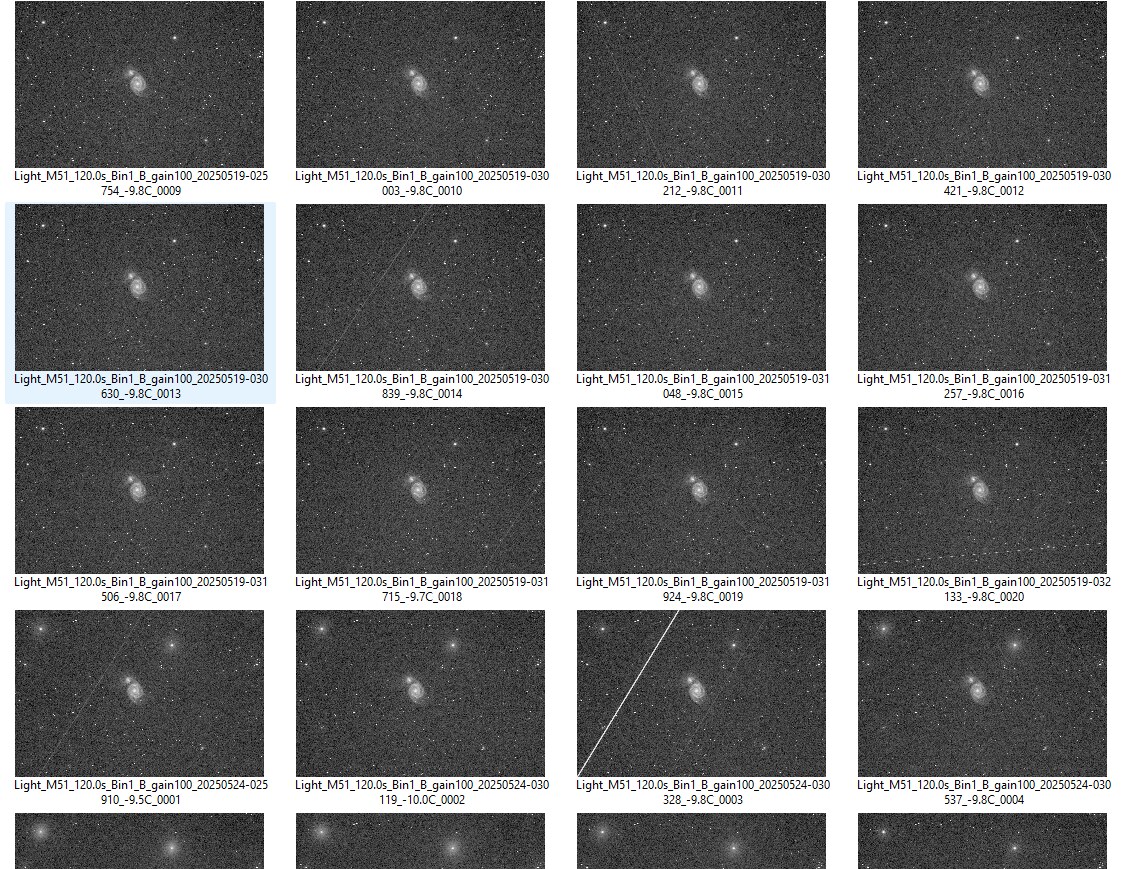
Thumbnails
Every .fits, .fit, .fts, .fz or .xisf file shows its image in the Finder or File Explorer, instead of a blank icon.
Large preview
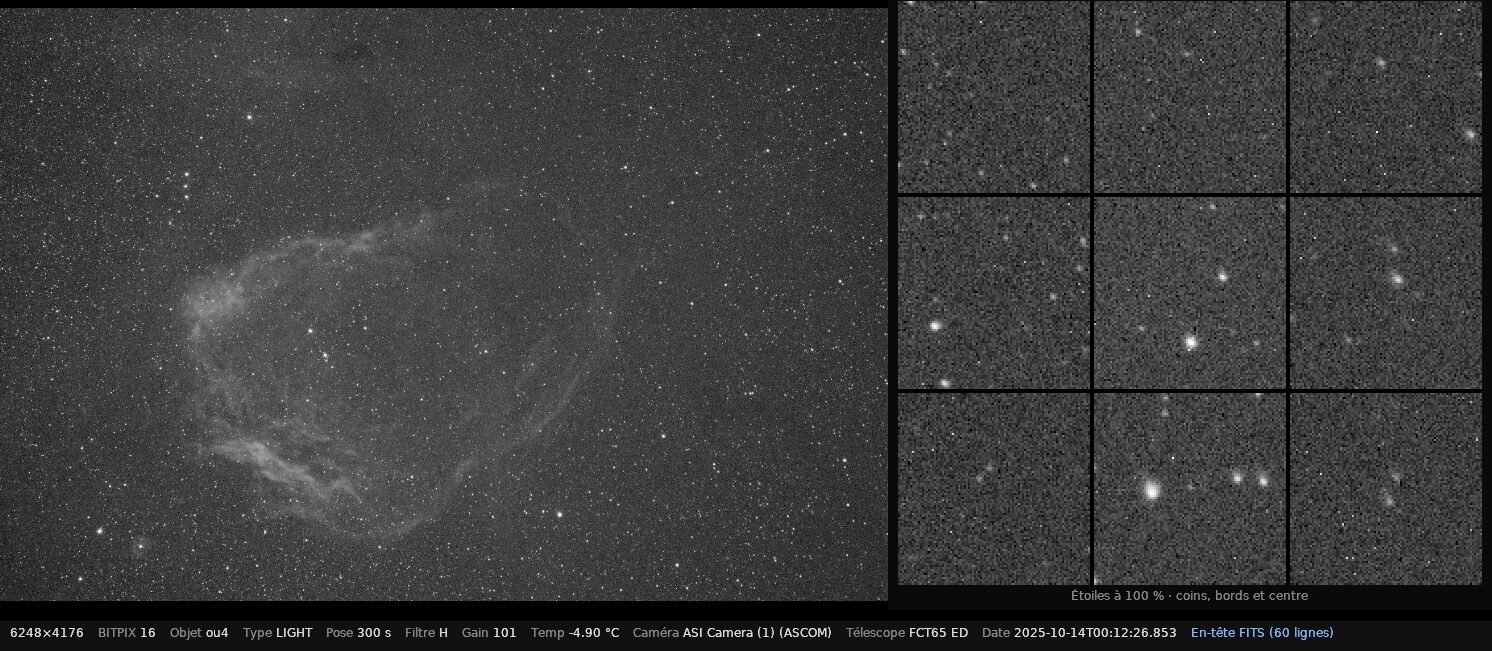
Space bar on the Mac, preview pane (Alt+P) on Windows: the image in large, with object, exposure, filter, gain, temperature and number of stacked subs.
Stars at 100%
Next to the image, a mosaic of the corners, edges and centre at full resolution: stars elongated by guiding, wind, focus or tilt spotted at a glance.
Sorting viewer
Hold an arrow key and the subs play by themselves. A bad sub? One key sets it aside, another brings it back. A night sorted in minutes.
Auto stretch
Linear images are stretched like PixInsight's auto-STF: no more black screen.
Colour
Seestar, one-shot colour cameras (Bayer matrix) and RGB images are shown in colour.
Network drives
NAS, another computer's shared folder: only the rows a thumbnail needs are read, so folders show up quickly even over the network.
FITS, fpack and XISF
Reads fpack-compressed FITS (RICE), such as Telescope Live's, and PixInsight .xisf files: masters and work-in-progress images, with their details.
Full header
Every line of the FITS header, one click below the image.
Sort a night in minutes
- Open the viewer: right-click an image › Open With › FITS View (on Windows, also right-click a folder › Open in FITS View).
- Hold the ↓ key: the subs play, each with its star mosaic alongside.
- A bad sub (cloud, trail, elongated stars)? ⌘⌫ on the Mac moves it to the Trash, Delete on Windows moves it to a “_Rejets” subfolder. ⌘Z or Ctrl+Z puts it back.
Download FITS View
Enter your e-mail address: the Mac and Windows download links are sent to you right away.
Your address is never published or shared. Unless you tick the box, it is only used to send you the links. Privacy
Installation
Mac
- Open the downloaded file and drag FITS View onto the Applications folder.
- Open FITS View from the Applications folder. A window confirms the installation.
- Close and reopen your Finder windows: the thumbnails appear.
The first time you open it, macOS may say “Apple could not verify FITS View is free of malware”. On macOS 15 or later: click “Done”, then System Settings › Privacy & Security › Open Anyway. On macOS 12 to 14: right-click the app › Open › Open. You only need to do this once.
Windows
- Open the downloaded file FITSView-Starissimo-Setup.exe.
- Accept the permission prompt, then follow the installer to the end.
- Open a folder of FITS images in “Large icons” view: the thumbnails appear. Alt+P opens the preview pane.
Windows may say “Windows protected your PC”: FITS View is free and has no paid Microsoft certificate. Click “More info”, then Run anyway. You only need to do this once.
Frequently asked questions
No thumbnail on the Mac? Relaunch FITS View and click “Reset previews”. If another astro app shows its own previews, choose FITS View in System Settings › General › Login Items & Extensions › Quick Look.
No thumbnail on Windows? Open FITS View from the Start menu and click “Rafraîchir les vignettes” (refresh thumbnails). Also check File Explorer is not set to “Always show icons, never thumbnails”.
Windows says the preview “could harm your computer”? That is Windows security for files on another computer on the network (NAS, shared folder). For your own drives: Control Panel › Internet Options › Security › Local intranet › Sites › Advanced, add the NAS address (for example 192.168.0.10), then close and reopen File Explorer.
Are the subs I set aside deleted? No. On the Mac they go to the Trash; on Windows to the “_Rejets” subfolder, which also works on a network drive.
Uninstall? On the Mac, move FITS View to the Trash. On Windows: Settings › Apps › FITS View by Starissimo › Uninstall.
Verify the download (SHA-256):
Mac: 2b1bc75476fb1a812a45737c96858cff0b0fead4388e505c8966848af686d897
Windows: 3190ffd5da25ffb8057355d34c17de8e1138aac4594342f1e46055372221eef1
FITS View by Starissimo · free software for astrophotographers. Discover Starissimo